
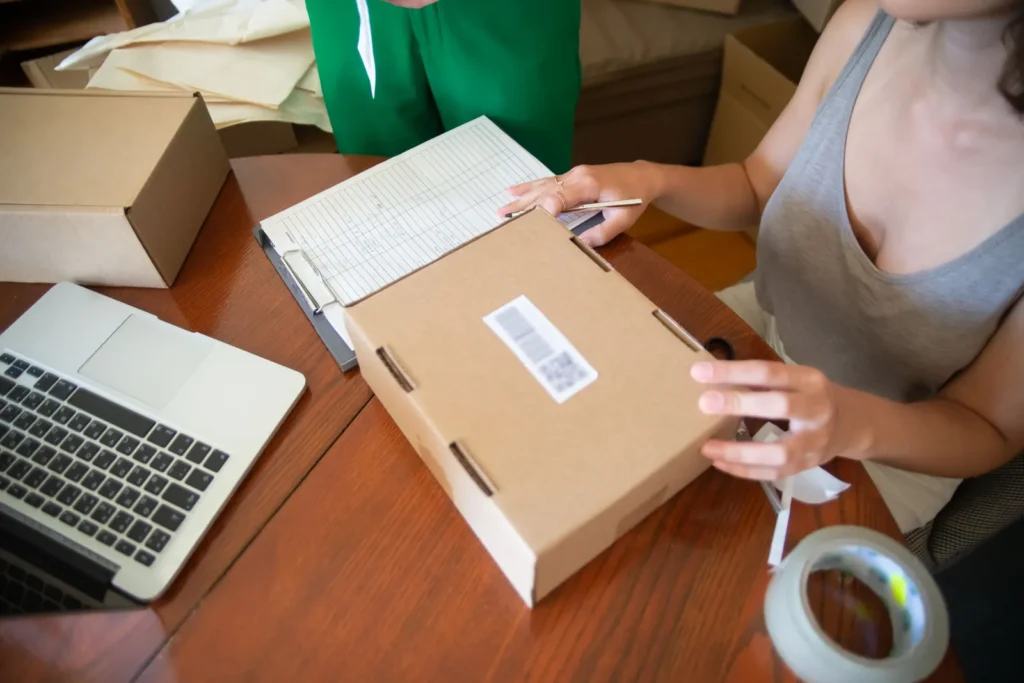
Cash on delivery still dominates online shopping in Pakistan, but COD comes with returns, fake orders and slow cash flow. Adding JazzCash and Easypaisa to your WooCommerce checkout gives customers a fast way to pay from the mobile wallet they already use, and gives you money before the parcel leaves your warehouse.
This JazzCash WooCommerce integration guide walks through the whole process: merchant accounts, website requirements, credentials, plugin or custom integration, testing and going live. It also covers the errors that stop most integrations from working. It’s written for store owners, so you’ll know what to ask your developer, or whether to hand the job to someone like Askoder Tech Solutions.
Step 1: Apply for merchant accounts
You can’t accept wallet payments with a personal JazzCash or Easypaisa account. Each provider has a merchant (business) onboarding process, and the payment gateway credentials are issued only after approval.
Apply through each provider’s official business or merchant channel. Expect to be asked for things like:
- Business details and owner identity documents
- A business bank account for settlements
- Your website URL and a description of what you sell
- Tax registration details, depending on your business type
The exact list changes, so confirm the current requirements with the provider. Apply early: approval usually takes longer than the technical work.
Step 2: Get your website ready for approval
Payment providers usually review your website before approving a merchant account. Before applying, make sure your store has:
- HTTPS (SSL) on every page
- Clear product prices in PKR
- Refund and return policy, shipping or delivery policy, privacy policy and terms and conditions pages
- A contact page with a phone number, email and business address or city
- A working checkout, even if it’s COD only for now
A store that looks unfinished is a common reason for delays. If you’re still building yours, see WooCommerce development in Pakistan.
Step 3: Collect your integration credentials
Once you’re approved, each gateway gives you credentials for a sandbox (test) environment and later for live payments. Typical examples:
- JazzCash: a Merchant ID, a password and an integrity salt (the secret key used to create a secure hash for every request)
- Easypaisa: a Store ID and a hash key, plus any API account details for the integration method you’re given
Treat these like bank passwords. Never paste them into public chats or screenshots, and store them only in your WooCommerce payment settings or the server configuration.
Step 4: Choose plugin or custom integration
There are two routes:
1. A plugin. Some gateways or third-party developers offer WooCommerce plugins. A good plugin is quick to set up, but check that it:
- is actively maintained and compatible with your WooCommerce version (including the newer block checkout)
- verifies the payment response on the server, not just in the browser
- supports the payment methods you’ve been approved for (wallet, card, voucher)
- handles callbacks, so an order still updates if the customer closes the tab
2. A custom integration. If no reliable plugin fits your gateway version, or you need custom flows (partial payments, invoice links, subscriptions, or an ERP or custom PHP app), a developer builds the integration directly against the provider’s API documentation.
Step 5: Configure WooCommerce correctly
Whichever route you choose, these settings matter:
- Currency: WooCommerce → Settings → General → Currency set to Pakistani rupee (PKR).
- Return and callback URLs: enter the exact URLs from the plugin or developer into the gateway’s merchant portal, where required.
- Order statuses: successful payments should move orders to Processing, failed ones to Failed, and abandoned ones to Pending payment or Cancelled after a time limit.
- Exclude payment pages from caching: the checkout, order-received and gateway callback URLs must never be cached by LiteSpeed, Cloudflare or any other cache.
- Server time zone: make sure your server and WordPress time zone are correct (Asia/Karachi). Some gateways reject requests whose timestamps or expiry times look wrong.
- Emails and notifications: confirm that the customer gets an order email and, ideally, a WhatsApp confirmation.
Step 6: Test in the sandbox, then go live
Testing is where most problems show up. Test at least these cases in the sandbox:
- A successful wallet payment
- A failed payment, such as insufficient balance or a wrong PIN
- A cancelled payment, where the customer goes back from the gateway page
- Closing the browser right after paying (does the callback still update the order?)
- A mobile checkout over a slow connection
When everything passes, switch to live credentials, place a small real order, confirm it settles to your account, and refund it if your process allows.
Common errors and what they usually mean
- “Secure hash mismatch” / “invalid hash”. The integrity salt or hash key is wrong, or the fields are not sorted and combined exactly as the documentation requires. Check for extra spaces and the wrong environment (sandbox key on live).
- Amount errors. Some APIs expect the amount in a specific format, for example without a decimal point or in paisa. Check the documentation for your gateway version.
- Transaction expired immediately. This is often a server time zone or date-format problem.
- Order stays “Pending payment” after a successful payment. The callback or IPN URL is wrong, blocked by a security plugin or firewall, or cached.
- Works on desktop, fails on mobile. Check redirects, pop-up blockers and whether the checkout page is cached or minified so heavily that the gateway script breaks.
Should you keep cash on delivery?
Yes, for most stores. Offer JazzCash and Easypaisa alongside COD, and consider a small incentive for online payment, such as free delivery or a discount, to shift customers over gradually. Pair online payments with automated courier booking so prepaid orders ship fast, and keep the checkout fast with website speed optimization.
How much does it cost?
The cost of a JazzCash or Easypaisa integration depends on your platform (WooCommerce, a WordPress form or a custom PHP app), how many gateways you add, and extras such as refunds, reconciliation or subscriptions. Gateway transaction fees are separate and set by the provider.
- Plugin-based WooCommerce setups are usually the simplest
- Custom apps, portals and ERP checkouts take more development and testing
- Fixing an existing, half-working integration is often quicker than starting again
Try our price calculator for an instant estimate range and timeline, then send the estimate to us on WhatsApp. We’ll confirm an exact quote after a short chat.
Frequently asked questions
Can I use my personal JazzCash or Easypaisa account on my website?
No. Website payments need a merchant account in your business name, with gateway credentials issued by the provider.
How long does the integration take?
The technical work usually takes a few working days once credentials are available. Merchant approval is handled by the provider and often takes longer.
Do JazzCash and Easypaisa charge fees?
Yes. Providers charge transaction or service fees under your merchant agreement. Confirm the current rates directly with each provider.
Can I add Stripe as well?
Only if your business has an entity in a Stripe-supported country. Stripe doesn’t onboard Pakistan-registered businesses. See our payment gateway integration page for options.
Can Askoder fix an integration another developer started?
Yes. We review the existing setup, find the cause (usually hash, callback or caching issues) and quote the fix.
Get JazzCash and Easypaisa working on your store
Askoder Tech Solutions integrates JazzCash, Easypaisa and Stripe with WooCommerce and custom PHP apps, with sandbox testing, server-side verification and a go-live checklist. Send us your store URL and the gateways you’ve been approved for.